Search this blog

Showing posts with label SSIS. Show all posts

Wednesday, June 22, 2016

Fix: Unable to create the type with the name 'SPCRED'

Problem:
I tried to export one of the SSIS packages from Integration Services catalog. I got the below error
 
"Unable to create the type with the name 'SPCRED'. (Microsoft.SqlServer.ManagedDTS)"
 
Solution:
When I explore this issue, found that the package extracts data from SharePoint list. but we don't have inbuilt component in SSIS to fetch the data from SharePoint. So We need to use third party connecter which is exists in CodePlex "SharePoint List Source and Destination"
 
 
after Install this connector, I can export the  SSIS packages from Integration Services catalog without any issues.
 
Also, you can see this connector added in SSIS connection Manger
 
Note:
  • If it is not appeared in connection manager then you've to restart your Visual studio if it opened
  • If not appeared in connection Manager after restart your VS, then the version you installed is not compatible with your VS, so choose the Proper version and install it.

Saturday, July 11, 2015

SSIS Lookup Transformation - Handle Case Sensitive Issue

Problem:
I have a lookup transformation in one of my SSIS packages, used it to get ID of an employee record in a dimension table. However my problem is that some of the source data has employee names in Different case, which is not matching with the Case that Stored in the Dimension Table.

For Example:
Source Table Employee Name is "KUmar", but in the Dimension table, It is Stored as "Kumar"

The Lookup is failing for this Scenario wherever the case of the Employee Name are not similar
 So, How can I get rid of this issue, Is there a way to make a lookup transformation ignore case?

Solution:

There is No option to change the transformation be case-insensitive directly. But We can handle this issue in two ways:

Option 1: If the data need not to lookup based on the case Then Convert both in to similar (UPPER (Or) lower) case before do the Lookup. This will not omit any records, you will get matched records for all

Option 2: Set the CacheType property to Handle the case Issue.

Full Cache: This option is case sensitive by default.  
Partial and No-cache: This option uses the Collation setting of the database (or table) to handle case.

Set the CacheType property as Partial or None, Now row by row comparisons will be taken care by SQL Server and not by the SSIS lookup component.


Hope This Helps!

Wednesday, February 13, 2013

SSIS Excel Connection Manager Error

Problem:
I've created a simple package to fetch the data from SQL Server to pupulate the Excel file using Excel Destination SSIS Component, when I tried to Execute, it throwed below error

Error: 0xC020801C at Data Flow Task, Excel Source [1]: SSIS Error Code DTS_E_CANNOTACQUIRECONNECTIONFROMCONNECTIONMANAGER. The AcquireConnection method call to the connection manager "Excel Connection Manager" failed with error code 0xC0202009. There may be error messages posted before this with more information on why the AcquireConnection method call failed.

Solution:
This issue is occurred because my system has 64 bit OS and Office Excel object. most of the office products does not have 64bit provider and hence the error above on Excel connection. This Issue can be fixed by setting Run64BitRunTime property as False at SSIS Project properties.
 
Go to properties page for the overall SSIS solution, simply set the Run64BitRunTime = False. 

Refer the screenshot below for the further reference

SSIS: OLEDB.12.0 provider is not registered

Problem:
Today I tried to develop a simple SSIS package to populate the data to excel file using Excel Destination of SSIS components, but It throws the below error when I select excel sheet in Excel Destination Editor.

The 'Microsoft.ACE.OLEDB.12.0' provider is not registered on the local machine.

Solution:
This issue is resolved by installing 2007 Office System Driver: Data Connectivity Components

To install this download:
  1. Download the file by clicking the "Data Connectivity Components" link (above) and saving the file to your hard disk.
  2. Double-click the AccessDatabaseEngine.exe program file on your hard disk to start the setup program.
  3. Follow the instructions on the screen to complete the installation.
Hope this helps!

Saturday, February 18, 2012

5 Tips for a Smooth SSIS Upgrade to SQL Server 2012 - White Paper

Microsoft SQL Server 2012 Integration Services (SSIS) provides significant improvements in both the developer and administration experience. This article provides tips that can help to make the upgrade to Microsoft SQL Server 2012 Integration Services successful. The tips address editing package configurations and specifically connection strings, converting configurations to parameters, converting packages to the project deployment model, updating Execute Package tasks to use project references and parameterizing the PackageName property.


  • TIP #1: Edit Package Configuration and Data Source after upgrading
  • TIP #2: Convert to project deployment model using Project Conversion Wizard
  • TIP #3: Update Execute Package Task to use project reference and use parameter to pass data from parent package to child package
  • TIP #4: Parameterize PackageName property of Execute Package Task to dynamically configure which child package to run at execution time
  • TIP #5: Convert package configuration to parameter when possible
Reference:- MSDN Documentation

Tuesday, November 8, 2011

Denali: SSIS Resolve Column References in Data Flow Task (Video Tutorial)

Resolve Column References in a Data Flow Component:


Denali: SSIS Source & Destination intellisense For Data Flow Task (Video Tutorial)

Working with the Data Flow Task’s Source Assistant and Destination Assistant:


Denali: Execute SSIS Package Via SSMS (Video Tutorial)

Running a package using SQL Server Management Studio (SSMS):

Denali: Configure SSIS using SSMS (Video Tutorial)

Configure an Integration Services project using SQL Server Management Studio (SSMS):


Denali: Migrate SSIS Project To Deployment Model (Video Tutorial)

Migrate an Integration Services 2008 Project to the Project Deployment Model:


Denali: Extract an SSIS Project from SSIS Catalog (Video Tutorial)

Import an Integration Services Project from an Integration Services Catalog:


Denali: Extract an SSIS Project from Deployment File (Video Tutorial)

Import an Integration Services Project from the Project Deployment File 


Denali: SSIS Deployment Wizard (Video Tutorial)

Using the Deployment Wizard to deploy an Integration Services project

Denali: SSIS in BIDS (Video Tutorial)

Working with SSIS projects in Business Intelligence Development Studio (BIDS):


Thursday, June 30, 2011

SSISUnit - Testing Framework

SSISUnit is a testing framework for SSIS. it is based on xUnit Family of Unit Testing framework.

it provides better support to the SSIS environment. The main advantage of this tool is that you do  not need to write any program to define the test scenarios.It accepts the declaration approach, the defined test information are storing in XML files. This tool is user friendly, it will be useful to the user whoever not from coding backgrounds.

Benefits of SSISUnit:-
1. SSISUnit support task testing in SSIS.
2. You can a create any number of tests
3. it helps to test complex packages much easier
4. you can define new test or you can import it existing package to declare/define the testcase.

When the unit test is run, this is the sequence of execution for each test:
1. All commands in the setup node are executed.
2. The task referenced by the test is executed. If the task reference is the package guid, the entire
3. package is executed.
4. The command contained in the test node is executed.
5. The value returned from the command is compared to the expected value for the test.
6. All commands in the teardown node are executed.

SSISUnit UI Screenshot:-


 Functionality Available with this UI:


Product Sample Package and Test

For Further Information, refer

Wednesday, June 29, 2011

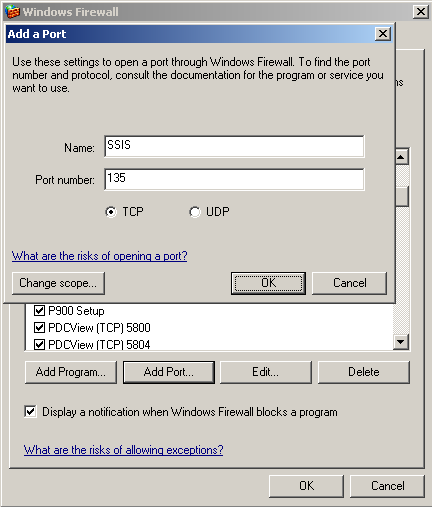
How to Configure Windows Firewall for SSIS

To enable remote access for MS SQL Server Integration Services, you have to configure the Windows Firewall by following listed steps here:

1. Open Windows Firewall from Control Panel
2. Click on Exceptions tab.
3. Click the "Add Program" button.
4. Browse to the folder where the SQL Server instance installation folders.
C:\Program Files\Microsoft SQL Server\100\DTS\Binn\MsDtsSrvr.exe is the default installation folder.

5. Click Open then on the next screen click OK button to add the SSIS executable to the application exceptions list.

6. Then the port # 135 should be added to the exceptions list as a TCP port.
7. You can define any descriptive name on the Name textbox, but you should specify the port number 135  and define it as a TCP port.

After these configuration, we can access the MS SQL Server 2008 Integration Services (SSIS) through on remotly

Connecting to a Remote Server's Integration Services.

By Default, we can connect the Database Engine, Analysis services of remote server using SQL Server management studio using Windows Authentication. But in the same way we can’t do for Integration services. If you want access the Integration services on remote server, then you need to do enable Remote access and provide access to the user by following the steps given below:-

To configure rights for remote users:-
1.       If the user is not a member of the local Administrators group, add the user to the Distributed COM Users group. You can do this in the Computer Management MMC snap-in accessed from the Administrative Tools menu.

2.       Open Control Panel, double-click Administrative Tools, and then double-click Component Services to start the Component Services MMC snap-in.

3.       Expand the Component Services node in the left pane of the console. Expand the Computers node, expand My Computer, and then click the DCOM Config node.

4.       Select the DCOM Config node, and then select MsDtsServer in the list of applications that can be configured.

5.       Right-click on MsDtsServer and select Properties.

6.       In the MsDtsServer Properties dialog box, select the Security tab.

7.       Under Launch and Activation Permissions, select Customize, then click Edit to open the Launch Permission dialog box.

8.       In the Launch Permission dialog box, add or delete users, and assign the appropriate permissions to the appropriate users and groups. The available permissions are Local Launch, Remote Launch, Local Activation, and Remote Activation. The Launch rights grant or deny permission to start and stop the service; the Activation rights grant or deny permission to connect to the service.

9.       Click OK to close the dialog box.

10.   Under Access Permissions, repeat steps 7 and 8 to assign the appropriate permissions to the appropriate users and groups.

11.   Close the MMC snap-in.

12.   Restart the Integration Services service.

To connect to Integration Services on a Remote Server

1.       Open SQL Server Management Studio.

2.       Select File, Connect Object Explorer to display the Connect to Server dialog box.

3.       Select Integration Services in the Server type list.

4.       Type the name of a SQL Server Integration Services server in the Server name text box.

5.       Click Connect.

If it connects then you can execute the ETL Packages which are all deployed at the server by passing valid credential.

Still if you can’t access, then you have to configure the server’s firewall by adding  the SSIS program in exception list.

Hope it helps!

Saturday, April 16, 2011

SSIS: Data Extraction From SharePoint List

Problem:-
How to extract the data from SharePoint List using SSIS?


Solution:-
If you want to extract the data from SharePoint, you need to install the “SharePointListAdaptersSetup.msi”. It provides 2 controls SharePoint List Source & Destination Control, Which is written by C# 3.0 Framework.


Download SharePointListAdaptersSetup.msi

Friday, April 15, 2011

Failed validation and returned validation status "VS_NEEDSNEWMETADATA".

Problem:
Today I deployed my ETL package at my Staging Server. When I tried to execute the ETL, it throws error like,
[SSIS.Pipeline] Error: "component "SharePoint List Source" (1)" failed validation and returned validation status "VS_NEEDSNEWMETADATA".
Solution:
I followed the steps listed here to solve that problem.

1. Open your ETL Package (*.dtsx) file thru Microsoft Visual Studio
2. Reconfigured every of components of the package, by double click on the components, refreshing the schema, mapping with proper destination if required, etc.,
3. Save the Package
4. Import the package to Integration Services

After I tried to execute my package at staging server, it works fine.

Hope it helps!